Lafayette CollegeTechnology Help
Creating Accessible Word Documents
How to Create accessible word documents
The following information is intended to help maximize the accessibility of Word documents for readers using assistive technology software such as screen readers. These best practices will also help produce documents that are better for all readers and will allow for successful conversion to accessible PDF files.
Document Layout
- Format documents with high contrast, such as black text on a white background, to provide higher readability to those with low vision.
- Ensure the font size is sufficiently large; generally, a minimum of 12 points is recommended.
Document Structure
Headings
A proper document heading structure is one of the most important ways to make all digital documents accessible to everyone. It creates a logical, scannable outline of your document. Headings are more than just using bolded, enlarged, or centered text; they act as a table of contents. Using the right heading styles helps everyone read your document. It allows all readers, including those who use screen readers, to navigate through and understand different sections of your content.
Heading styles allow for the creation of structure through hierarchy. Heading styles start with Heading 1 and progress through Heading 6. Use only one Heading 1 as the page title per document. Heading 2 identifies major sections within your document. All Headings beyond Heading 2 become sub-sections of the heading preceding it. Headings should always progress in order and should not skip levels (i.e., avoid jumping from H2 to H4).
An example of good document structure:
- Heading 1
- Heading 2
- Heading 3
- Heading 3
- Heading 2
- Heading 3
- Heading 4
- Heading 3
- Heading 4
- Heading 5
- Heading 4
- Heading 3
- Heading 2
- Heading 2
Notice Heading 3 always comes after Heading 2, and Heading 4 always comes after Heading 3, and so forth. You can have as many headings as you would like, as long as the structure remains consistent.
To add headings to the document:
- Highlight the text to be made into a heading.
- Select the appropriate heading from the choices provided in the ribbon or open the Styles Pane for more options.
- To modify the heading style, click the far right paragraph
 button and select “Modify Style.” The font, color, and size can all be customized.
 - Repeat for each heading in your document.
Table of Contents
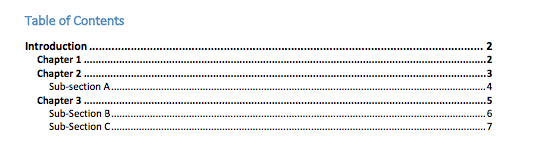
Not only does heading styles make your document easier to navigate—it also lets you create a table of contents. A table of contents is helpful for all readers, especially those using screen readers. It allows readers to jump straight to the chapters or sections they need to find.
To add a table of contents:
- Place the cursor at the desired location for the table of contents (e.g., the beginning of the document).
- Go to the References tab in the ribbon.
- Click “Table of Contents” and choose the desired style.
- The table of contents will display the heading levels and their relationships allowing users to jump to a desired section of the document by clicking the title or heading.
- It is also a good idea to add page numbers to the document to complement the table of contents. To do so, choose “Page Number” from the Insert tab on the ribbon.
List Formatting
When you use the bullet or number styles to make a list, screen readers can tell their users, “Hey, this is a list!” This allows users to skip through the list items or jump past the list if needed.
If you use the spacebar or the Tab key to indent your text, a screen reader won’t realize it’s a list. When that happens, users cannot navigate through your document, which can cause confusion.
Instead, always use the list buttons in the Word toolbar (the ribbon) to create your bulleted, numbered, or multilevel lists.

Document Content
Graphics and Images
When it comes to images and graphics, simplicity is key. A simple, well-designed page is easier for all users to read and understand. To make sure all users can understand your document, explain what your pictures, charts, and diagrams mean in the form of alternative text. Alternative text (Alt text) is a short description hidden behind the picture. When a screen reader reaches the image, it reads this description out loud so visually impaired users don’t miss out on any information.
To add alt text:
- Select the image to which you want to add text and right-click or Control-click
- Select Edit Alt Text…
- Type the desired text in the “Description” field; a Title can also be added here. The alt text should be succinct and equivalent to the image. There is no need to use descriptive phrases such as “image of…” because the screen reader will identify it as an image for the user. It is recommended to keep alt text to 125 characters or fewer as most screen readers break text up into blocks of 125 characters. For especially complex charts or equations, a link to an extended text description should be used.
Tables
Sighted users visually scan a table to make associations between the data in the table and how it relates to the row or column it is housed in. Screen readers need to make these same kinds of associations. Accessible tables need a clear table structure and table headers to help guide the screen reader user.
Creating tables:
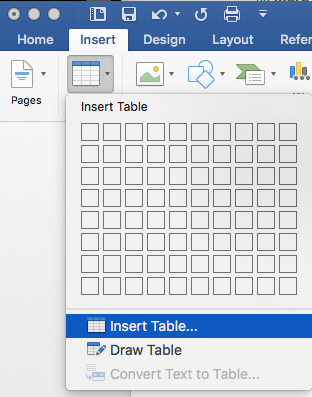
- Select the Insert tab on the ribbon, then select Table > Insert Table.
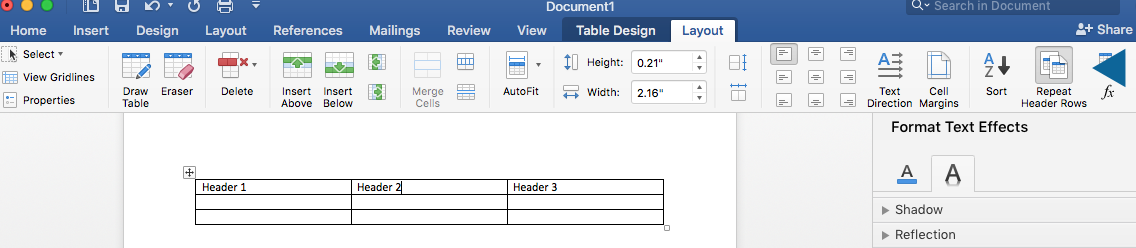
- To add table headers to the first row, select the Layout tab on the ribbon, then choose Repeat Header Rows.
Links
To create hyperlinks that are accessible to screen readers, use the following principles:
- Use descriptive text when creating the link not just the URL.
- Keep the text brief.
- Avoid using “click here” as screen readers navigate through a document from link to link and ambiguous text makes it difficult for the user to determine the context and relevance of the link.
Accessibility Checker
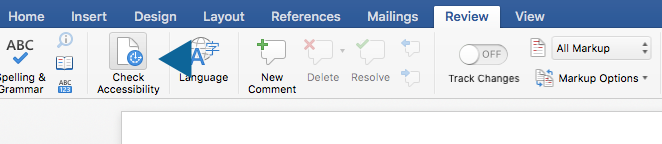
Word includes an accessibility checker that helps to identify accessibility issues. To check your document, first select the Review tab from the toolbar. Next, select Check Accessibility. An Accessibility Checker task pane will appear to the right with the results.
The Inspection Results classifies accessibility issues into three categories:
- Errors: content that makes a document very difficult or impossible to access. Example: an image with no alt text
- Warnings: content that, in most cases, makes the document difficult to access. Example: a link with text that is not descriptive, such as “click here”
- Tips: content that is accessible, but could be better organized or presented. Example: skipping heading levels, such as going from Heading 1 to Heading 3 without using Heading 2
Converting a Word Document to a PDF
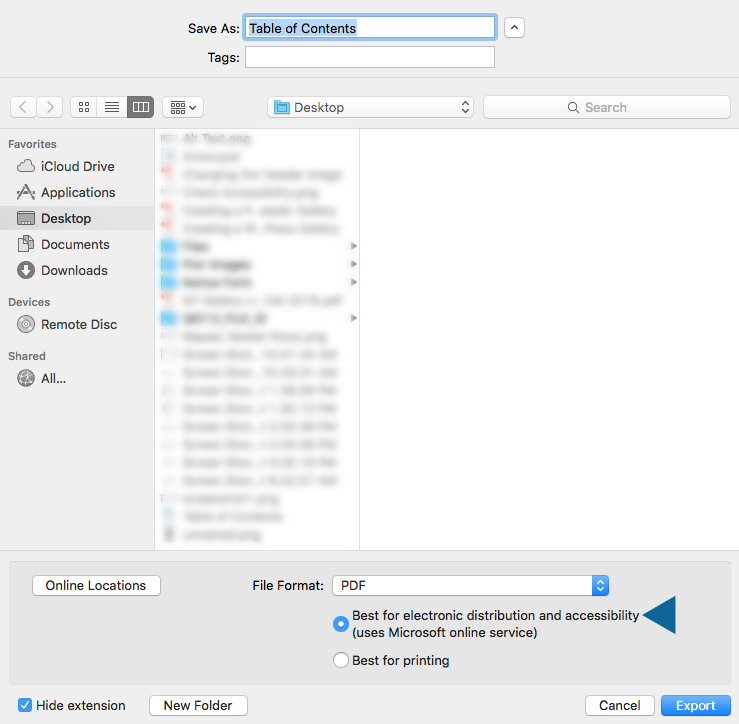
To maintain accessibility when saving a document to a PDF, check the “Best for electronic distribution and accessibility” box when exporting as a PDF.