Using Forums
How do I add a forum?
- Select the “Edit Mode” toggle in the upper right to begin editing the course site.
- Choose the section where you want to add the assignment and click Add an activity or resource.
- Select Forum activity from the Activity Chooser.
- Provide a Forum name, a Description, and set the Forum type. There are other options, such as allowing students to post anonymously, as well as set Ratings.
- Click the [Save and return to course] button.
How do I pin discussion topics?
To “pin” a discussion topic to the top of your forum:
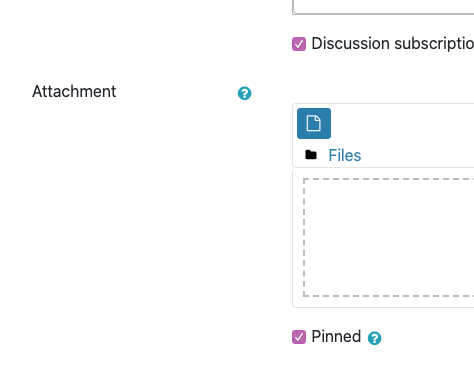
You can select “Pinned” when creating a new discussion thread by clicking Advanced and checking the [Pinned] checkbox.
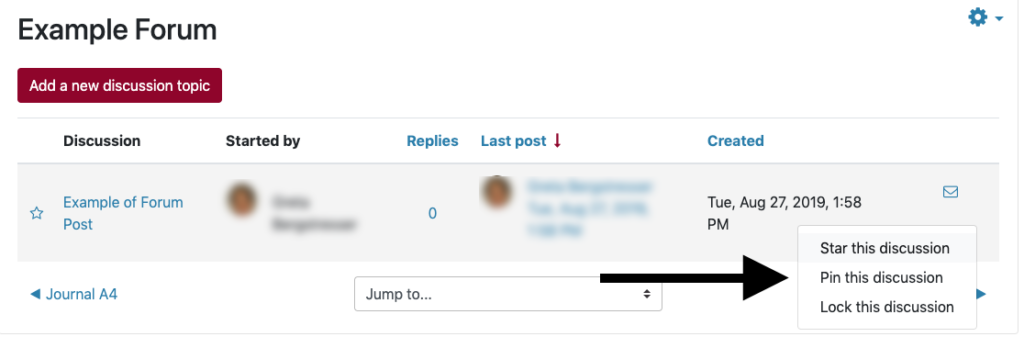
Or you can select an existing discussion topic and select Pin this discussion under the three vertical dots (ellipsis menu) on the Forum activity page
Or by opening up the discussion topic and selecting Pin this discussion under the Settings menu.
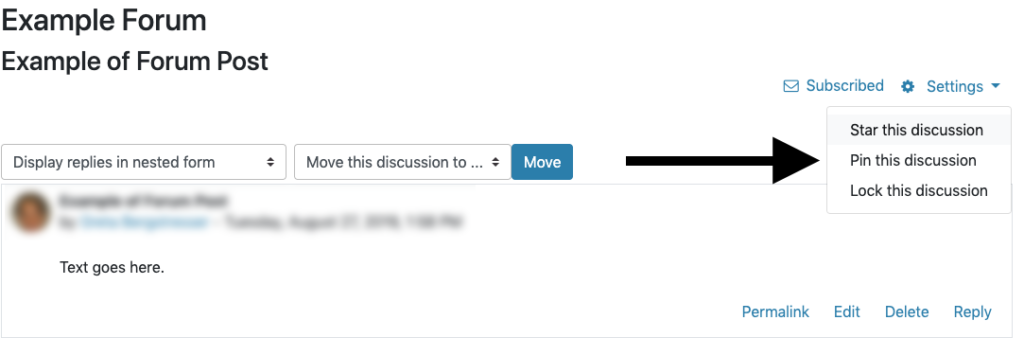
Faculty and students are also able to “Star” discussions in the same locations or by clicking the star to the left of the discussion name. This acts as a personal version of “Pinned discussions,” placing them at the top of the person’s list of discussion topics for that forum.
How to I can I subscribe to a forum?
When a participant is subscribed to a forum, it means they will receive email copies of forum posts. Under “Subscription Mode,” there are 4 subscription mode options you can choose from:
- Optional subscription – Participants can choose whether to be subscribed.
- Forced subscription – Everyone is subscribed and cannot unsubscribe.
- Auto subscription – Everyone is subscribed initially but can choose to unsubscribe at any time.
- Subscription disabled – Subscriptions are not allowed.
How can I grade a forum?
Whole forum grading is a new feature that allows the instructor to view and grade the entirety of a student’s forum postings on a single, intuitive page. To set it up:
Add Grading to the Forum
- Add a forum and expand the “Whole forum grading” option
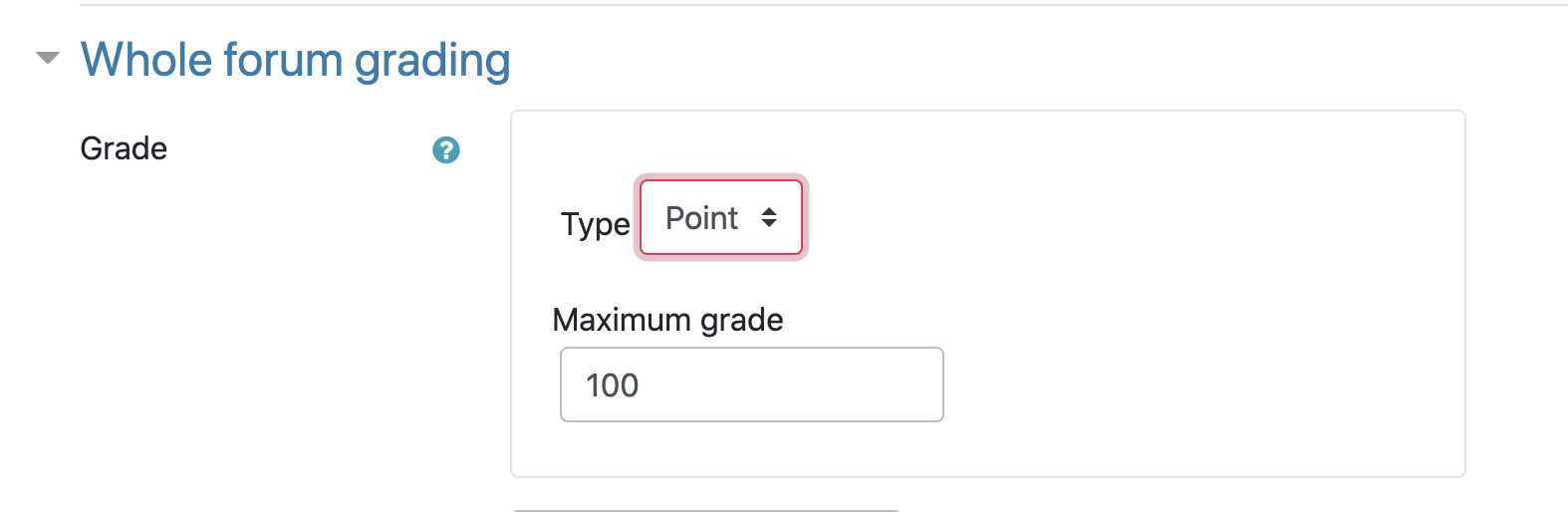
- Choose either point or scale grading and set additional grading settings as desired
Grading the Forum
- Once students have submitted their forum posts, you can choose the [Grade users] button to grade all the posts and replies for a single student
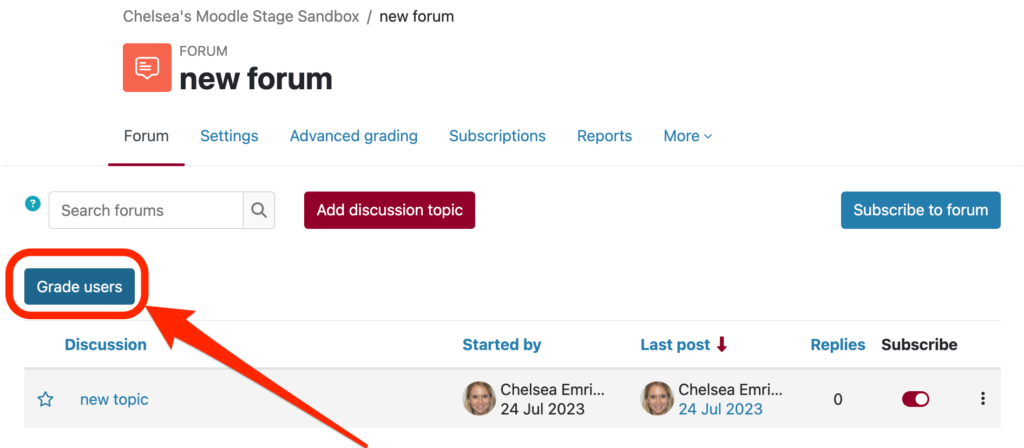
- On the next page, you will see a single student’s entire collection of posts (including replies to other students) on the left side of the screen
- The grader panel can be hidden and expanded using the buttons located at the top right of the screen

- Use the arrows to navigate to the next student’s posts
- Click [Save] to save the grade or [Close] to return to the main forum page.
How do I get a report of forum activity?
Located in the Gear icon drop-down list, the forum summary report allows the instructor to see a report of all student activity on a forum. You can also export a file (.csv, .xlsx, .pdf, etc) of all students’ posts and replies for that given forum.
What are some other forum features?
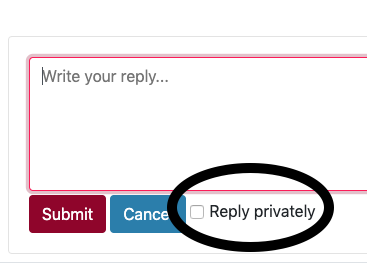
Reply Privately
When replying to discussion posts, there is the option to reply privately to the post’s author.
Lock Discussion
Faculty are able to lock discussions to prevent further posts and replies. This can be done under the vertical ellipsis  button on the main Forum page or under the Settings menu within the discussion post itself.
Post Sort-order
When viewing the list of discussion topics in a forum, one can sort the list in the following ways:
- Newest discussions at the top of the list
- Oldest discussions at the top of the list
- Sort by most replies
- Regardless of sort order, pinned discussions will be at the top of the list