Two-step login, also known as two-factor authentication, protects your Lafayette NetID by adding a second step when authenticating to applications that use single sign-on (SSO).
What is two-step login?
Two-step login provides an additional layer of security so that attackers can’t access protected systems using only your NetID password. It also prevents password-guessing attacks from succeeding. Two-step login helps keep your NetID, your personal information, and the College’s digital assets safe.
How does two-step login work?
Two-step login requires a second factor such as your office or cell phone, a passcode, or a hardware token when authenticating to a service. You still use your password, but in addition to something you know (e.g., your password), the second step requires something you have (e.g., your mobile phone).
An example of two-step login you likely are familiar with is a bank debit card. It isn’t possible to withdraw money using only a PIN (something you know). You must also swipe a card (something you have).
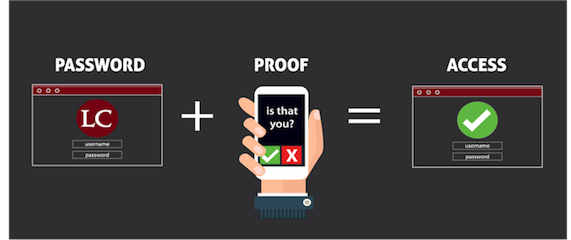
Each time you use your NetID to log into a service that supports two-step login, you will be prompted to complete a second step. Two-step login protects applications that use SSO (Single Sign On) for authentication, including VPN (Virtual Private Network). It does not apply when logging in to wireless networks, or campus computers.
Two-step login can remember trusted devices. The Lafayette device policy allows you to remember a device for 30 days, such as your Lafayette-issued laptop, desktop, or home computer. If you use another browser on the same device or use a different device, you will be prompted for two-step login again.
What devices or second factors can I use?
Two-step login supports a number of devices and methods of authentication.
- Push using DUO Mobile on a smartphone or tablet
- Passcode using DUO Mobile
- Text message passcode
- YubiKey / security key
- Phone call to mobile or landline
- Bypass code (Request from ITS help desk)
- Touch ID
What does ITS recommend?
ITS recommends you use the Duo Mobile app on your smartphone and only use phone callback to your office landline as a secondary option.
If you do not have a cell phone, or prefer not to carry one during the day, consider a YubiKey / security key instead. It can go on a keychain and the cost is minimal. Departments may purchase security keys for staff at their own discretion.
I will be traveling abroad. Is there anything I need to know?
How about if I am an international student or will be living abroad for a time?
We recommend using DUO Mobile for authenticating to Two-Step Login. Keep in mind Google Play Store might not be available in some regions, so plan ahead. If you intend to buy a local SIM card at your destination for an existing Android device, be sure you have DUO Mobile installed prior to departure.
If you will have a different phone while abroad and find you are unable to install Duo Mobile, you can use phone callback for two-step login or request a Bypass code from the ITS help desk. If you will not have access to the new phone until your arrival, be sure to generate SMS codes prior to arrival.
Enrolling in Two-Step Login
Below are instructions for enrolling in Two-Step Login. You may also watch the ITS video tutorial, The DUO Universal Prompt: A New Look for Two-Step Login, to be a helpful resource as well.
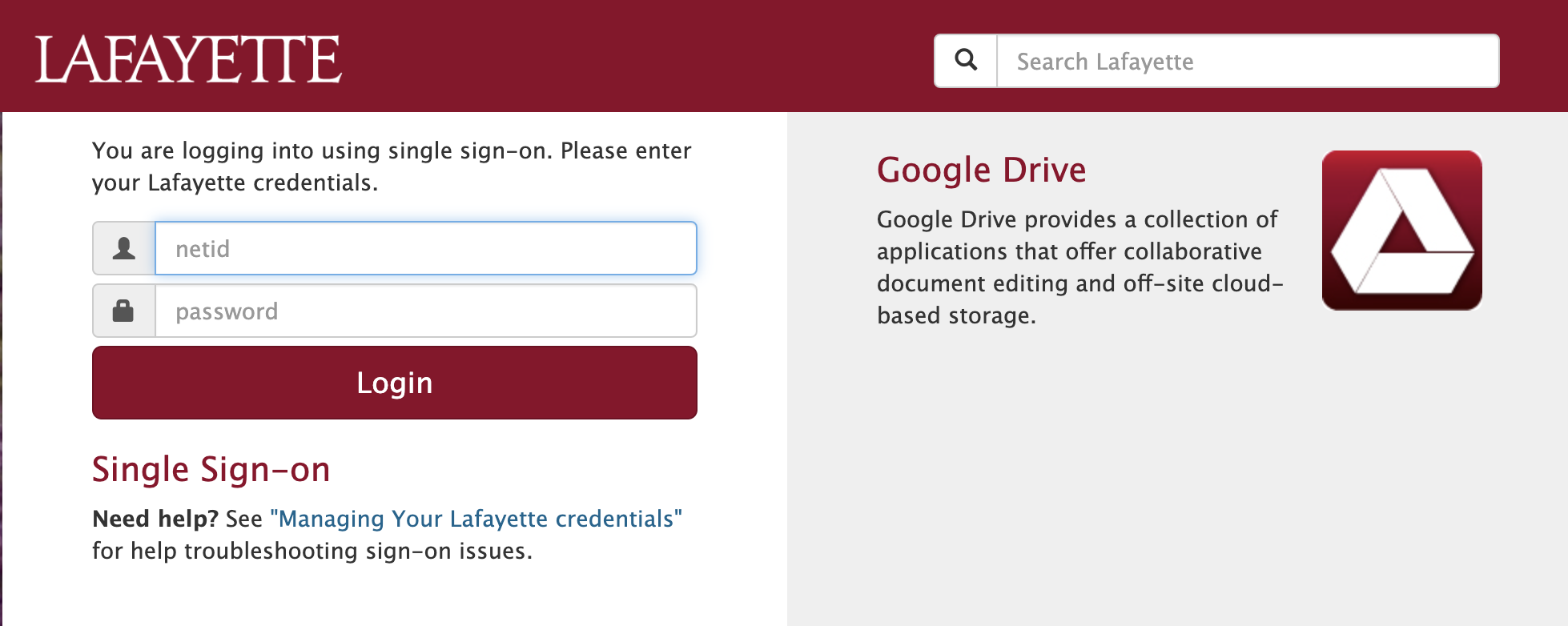
- Browse to an application that uses SSO, such as my.lafayette.edu
 .
.
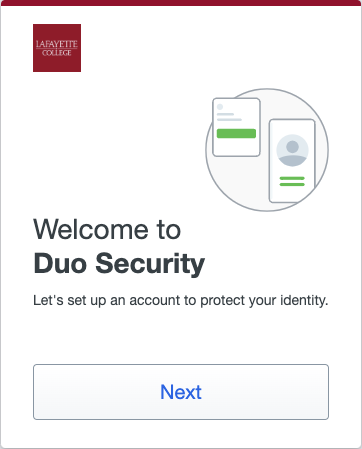
- After authenticating with your Lafayette NetID and password, a two-step login frame will display welcome to duo security. Click on “Next”
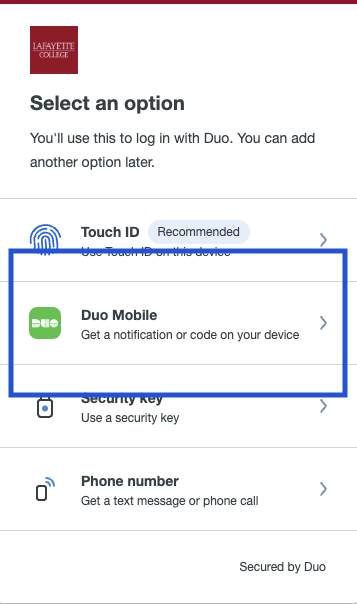
- Select the type of device you are adding. ITS recommends you register at least two devices, including a mobile phone and, as a backup, your office landline. Select “Duo Mobile” button.
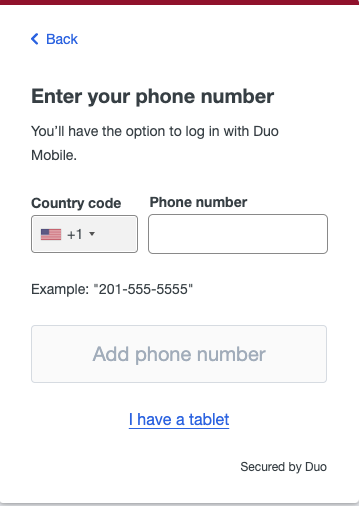
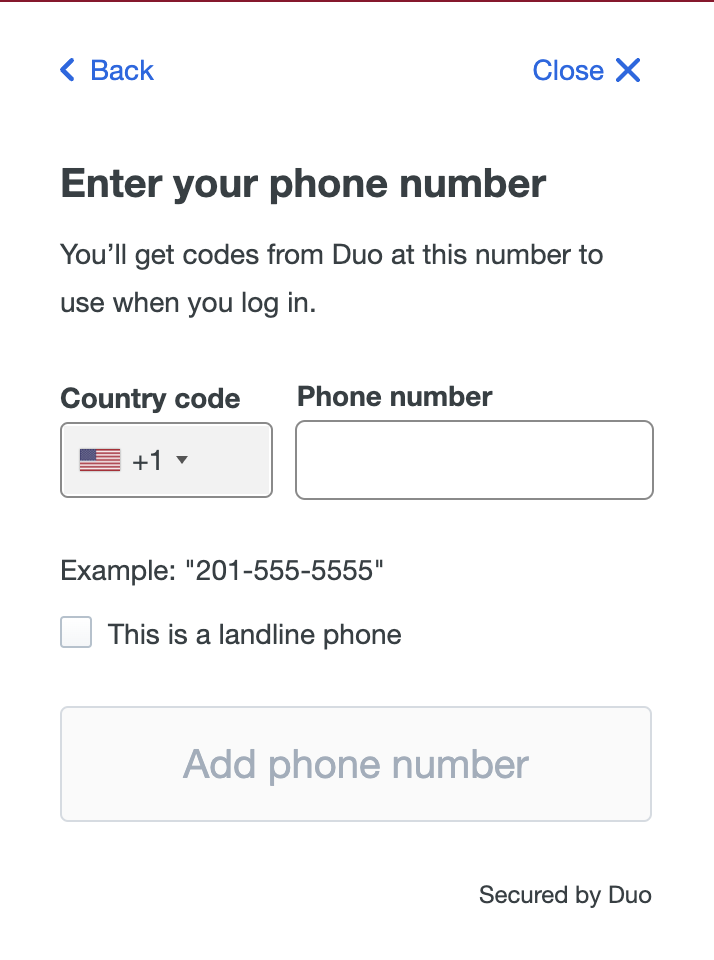
- Enter your phone number when prompted and click the “Add phone number” button.
- Verify ownership by entering passcode. You will be given a 6-digit code sent to the number you provided. Click “Verify”.

- Next you will be asked to download the duo mobile app. Download Duo Mobile to your phone through Google Play or the Apple App Store. Once complete click “next”.

- Next, you will see a QR code pop up on your screen. Open the app on your phone, tap the “+” button, and move your phone’s camera over the QR code to scan it.

- When it scans successfully, a green check mark alongside Added Duo Mobile will appear. An entry for Lafayette College will show in Duo Mobile. Click “Continue”

- Clicking on “Continue” will prompt you to add a secondary form of authentication. Please see Adding a YubiKey / security key for instructions.

- If you choose to select skip Setup “Setup Completed” will display on the screen along with a Green tick.

Please see Adding a Landline or Device to learn more about how to add more auth devices to your account.
Adding a YubiKey / security key
- Browse to an application that uses SSO, such as my.lafayette.edu.
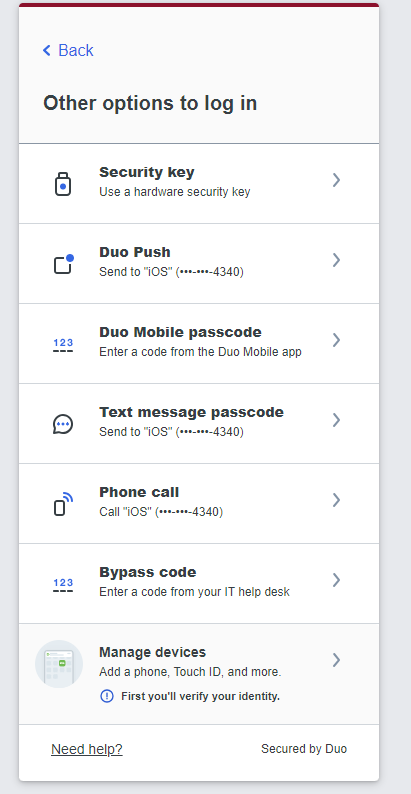
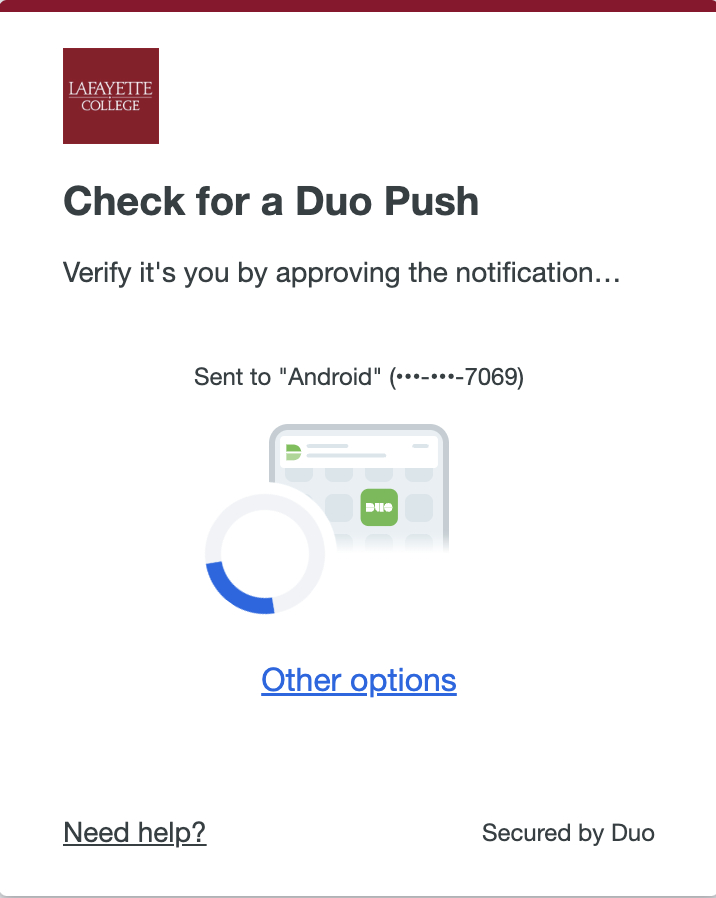
- Click “Other options” underlined in blue.
- Click “Manage devices”. Then verify your identity.
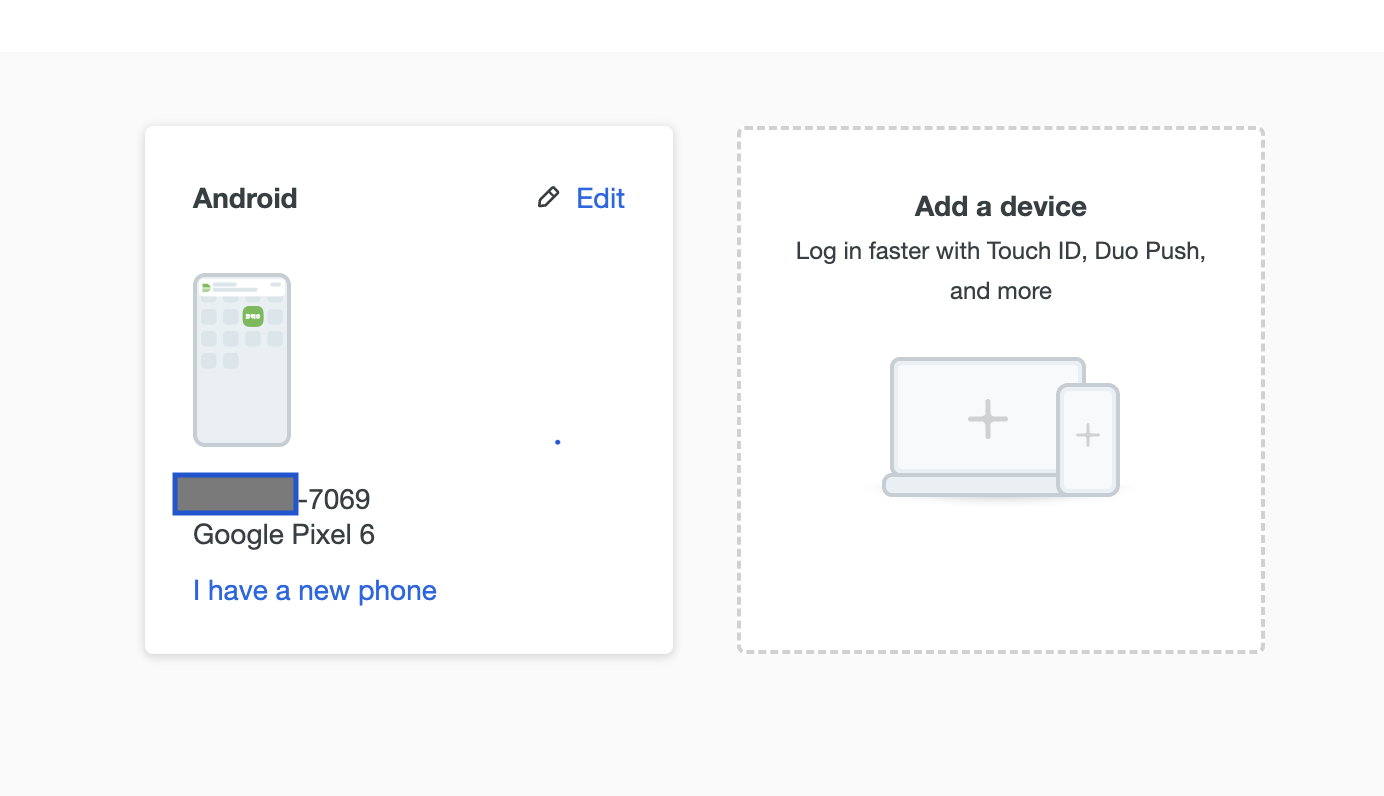
- Click “Add a device”, and select the option “Security key”, then click “Continue”.
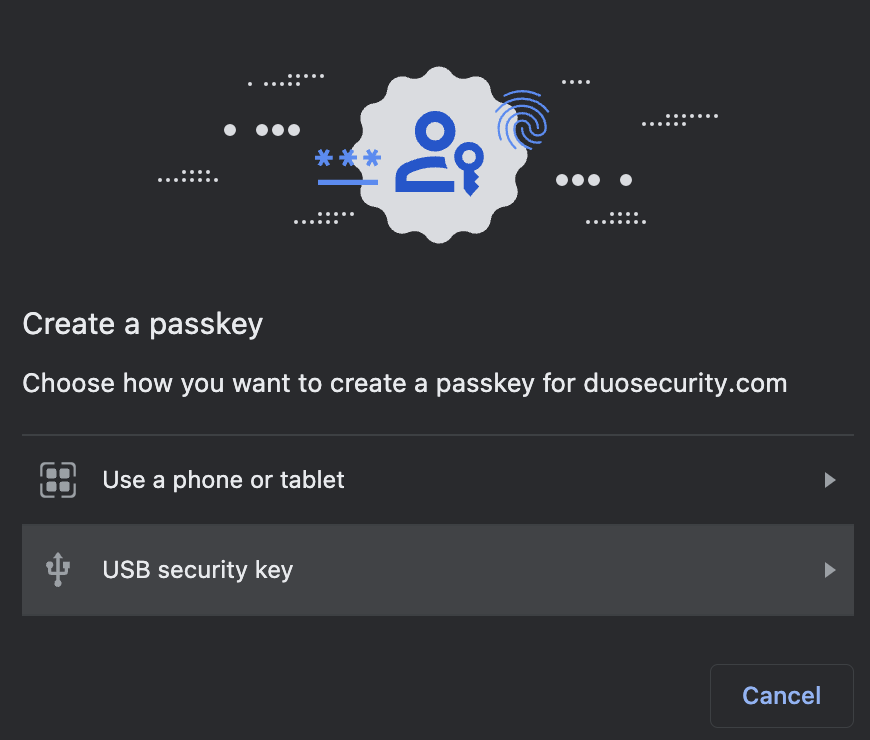
- Click option “USB security key”.
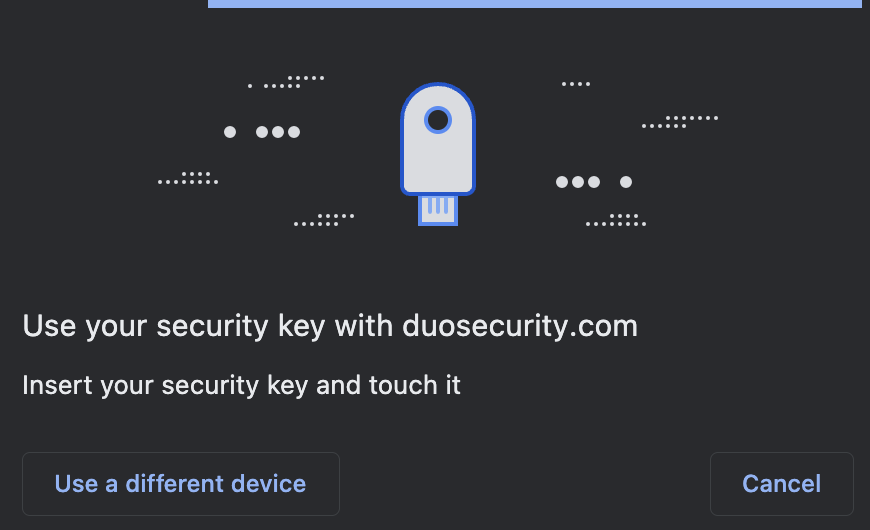
- Insert security key and touch YubiKey when prompted.
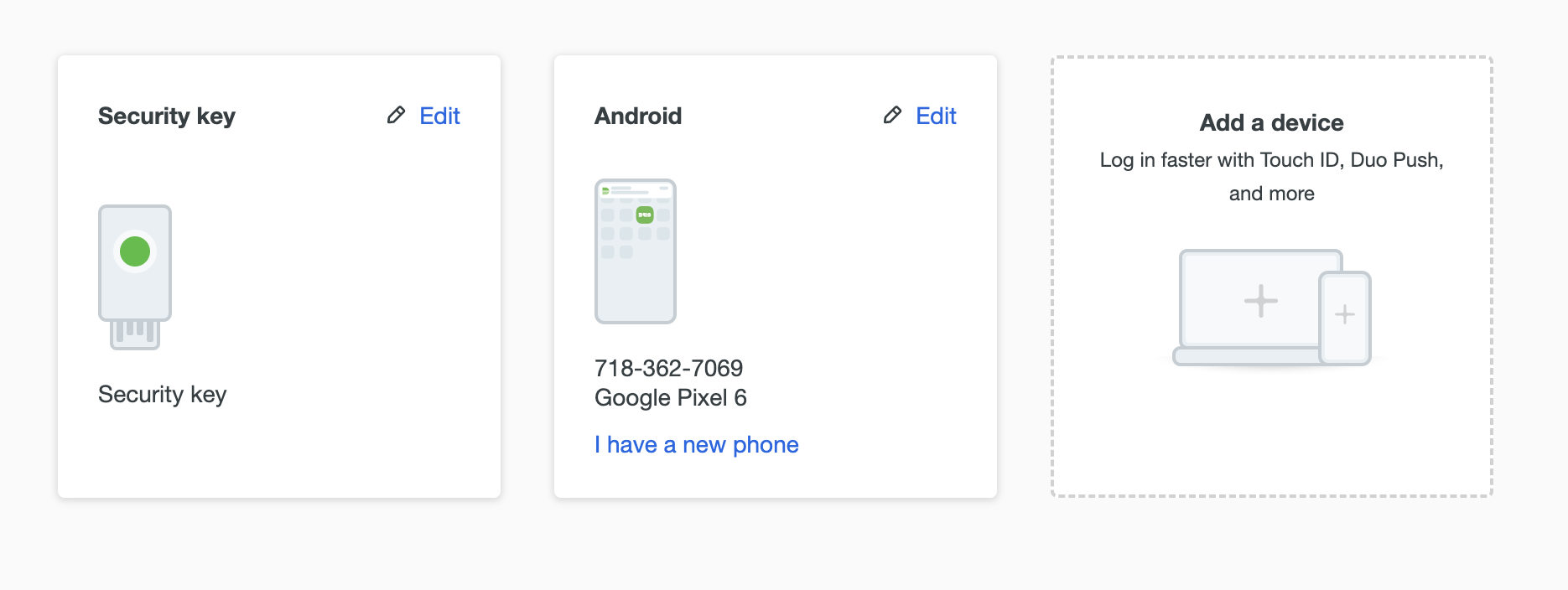
- You should now be able to see your security key listed along with your other devices.
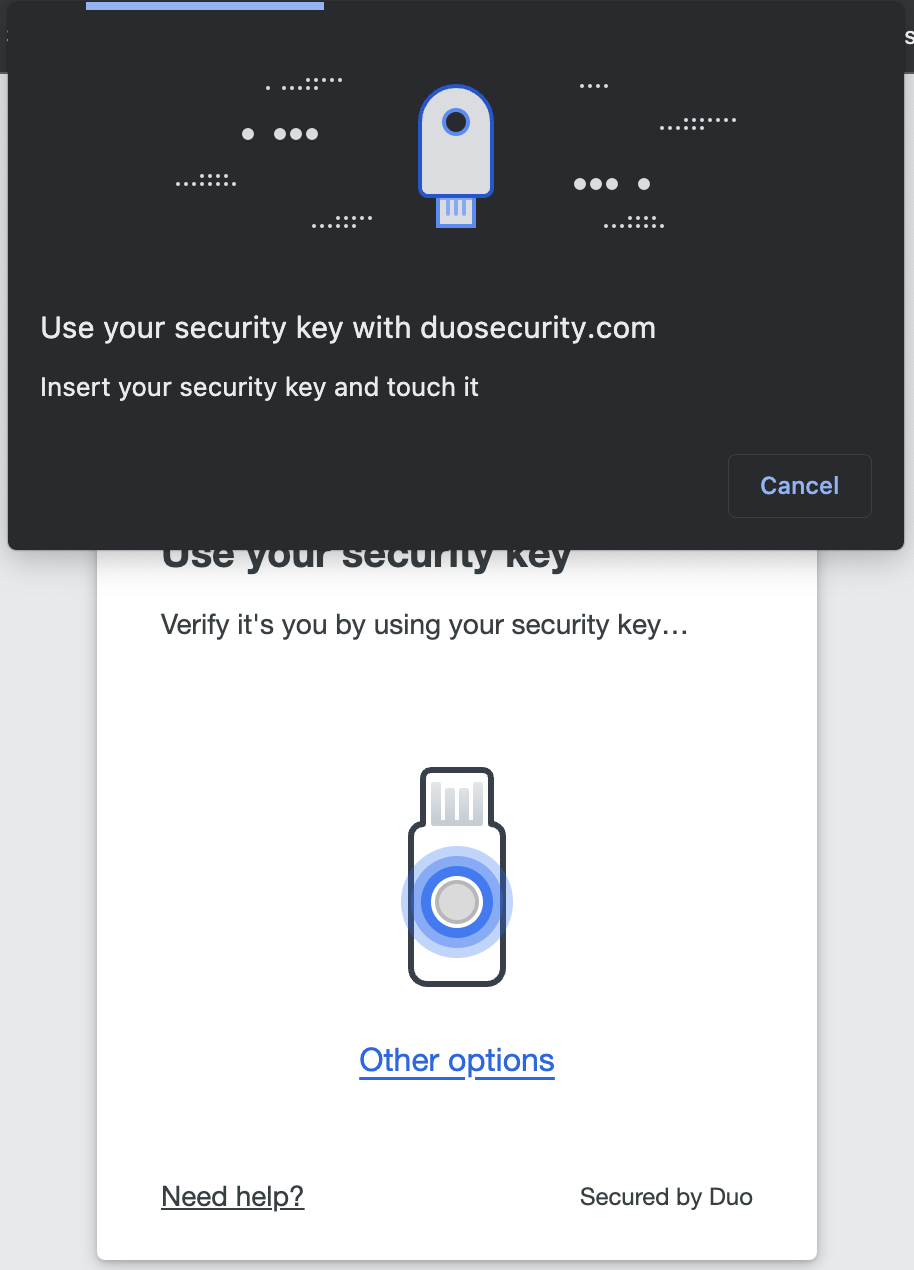
- Now when attempting to login in, if a U2F token is present and plugged in, you will see a black alert pop-up that will say “Use your security key with duosecurity.com.”
- Once you tap the YubiKey, the alert will change and tell you “Success!”.
Creating Passcodes
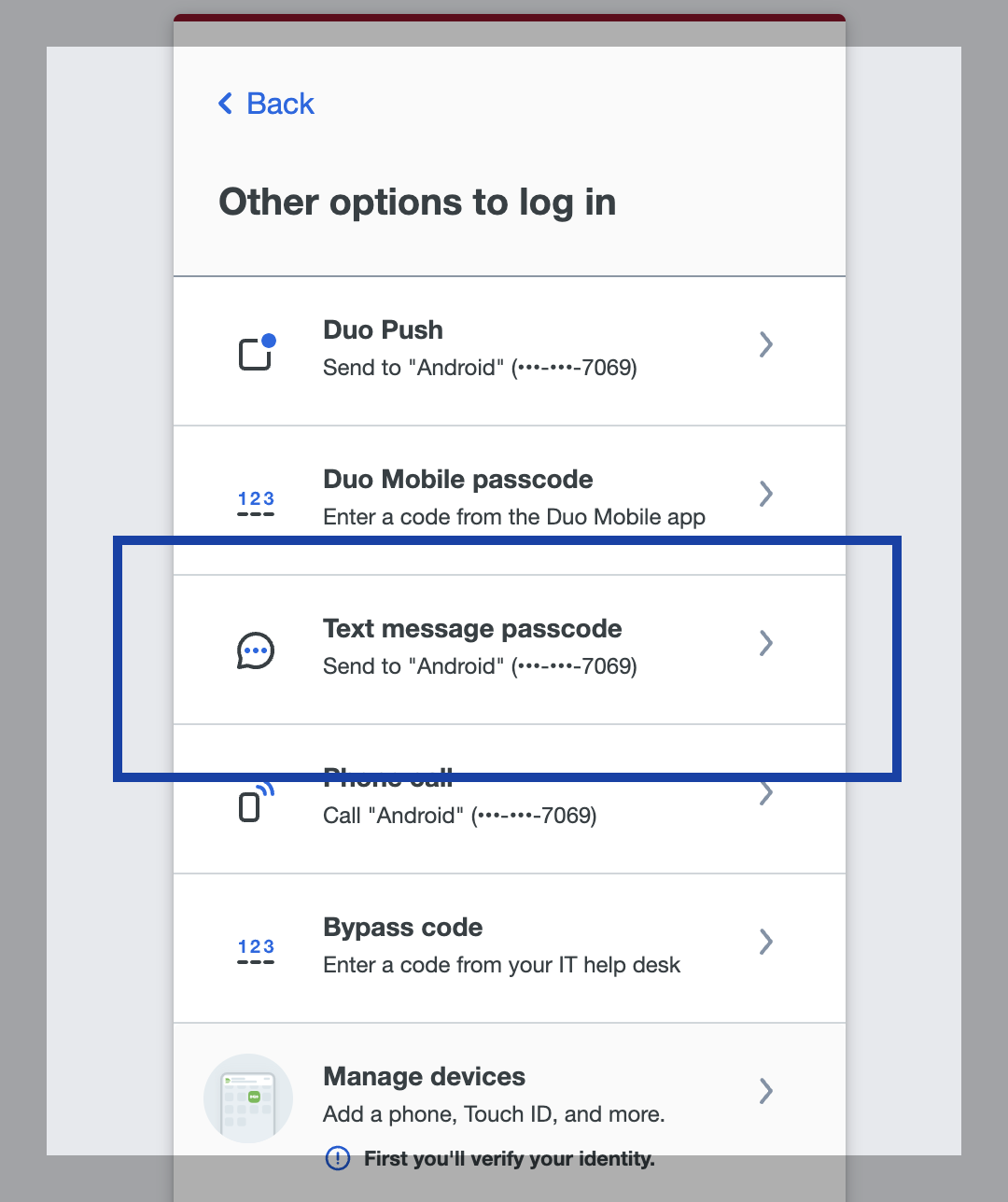
You can use Duo Mobile with the passcode method of authentication on your cell phone or tablet without wifi or a cell signal. In the Duo login frame in your browser, click “Other options”, “Text message passcode”, enter the code from your mobile device, then click “Verify”.
You can also text yourself SMS passcodes to keep with you in case you do not have access to any of your devices. They are especially useful when traveling abroad. SMS codes are one-time use only. To use them click “Text message passcode” under “Other options” in the login frame in your browser. A new passcode can be requested by clicking “Send a new passcode”.
Adding a Landline or device
- Browse to an application that uses SSO, such as my.lafayette.edu.
- Click “Other options” underlined in blue.
- Click “Manage devices”. Then verify your identity.
- Click “Add a device”, and select the option “Phone number” to add a landline.
- Enter the landline number you would like to add and check the box “This is a landline”, click “Add phone number”.
Under “Manage Devices”, you will now see two phones as options for two-step login. You can change your default device if you like as well as editing, adding or removing devices.