Lafayette CollegeTechnology Help
Disabling Gemini Smart Features in Google Workspace
You can change your settings to turn off some “smart” features and Gemini tools in Google Workspace. To learn more about what these “smart” features provide, visit Google’s smart features help documentation.
Change Smart Features for Gmail, Chat, and Meet
- Open Gmail in your web browser.
- Click the Settings icon
 (it looks like a small gear or wheel) in the top-right corner.
 - Select See all settings
 .
. - Click the General tab at the top.
- Scroll down until you find the section called Smart features.
- Find the option that says Turn on smart features in Gmail, Chat, and Meet.

- Here you can check the box to enable these features, or uncheck the box to disable them.
Change Smart Features for Other Google Products (Calendar, Drive, etc.)
Note: Changing these settings in Gmail will also change them for Google Calendar, Chat, Drive, and Meet.
- Open Gmail in your web browser.
- Click the Settings icon (the gear) in the top-right corner.
- Select See all settings .
- Click the General tab at the top.
- Scroll down until you see Google Workspace smart features.
- Select the button that says Manage Workspace smart feature settings.

- Here you can toggle the switch to enable these features, or toggle the switch to disable them:
- Smart features in Google Workspace
- Smart features in other Google products
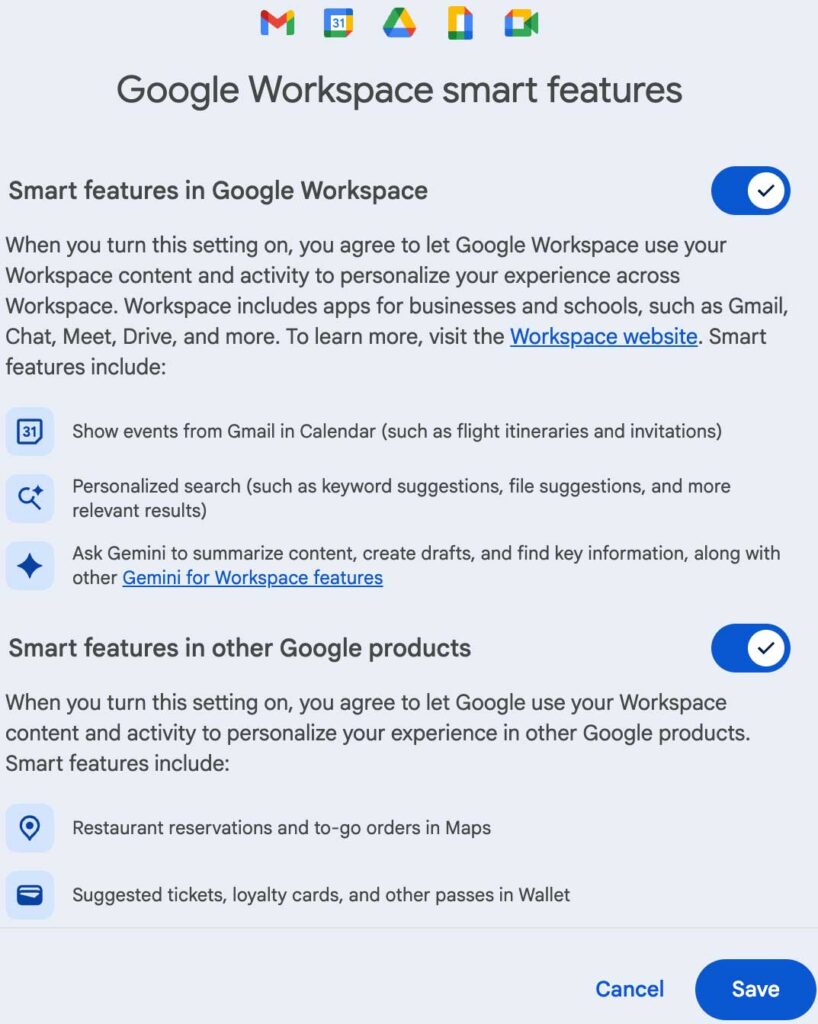
- Navigate to the bottom right corner and click Save.
Hide the Gemini Bottom Bar in Google Docs
Note: If you hide the Gemini bar in one Google Document, it will also hide the bar in all your other Google Documents.
- Open Google Docs in your web browser.
- Open a document you already have, or start a new Google Doc.
- Click Gemini in the top menu bar.
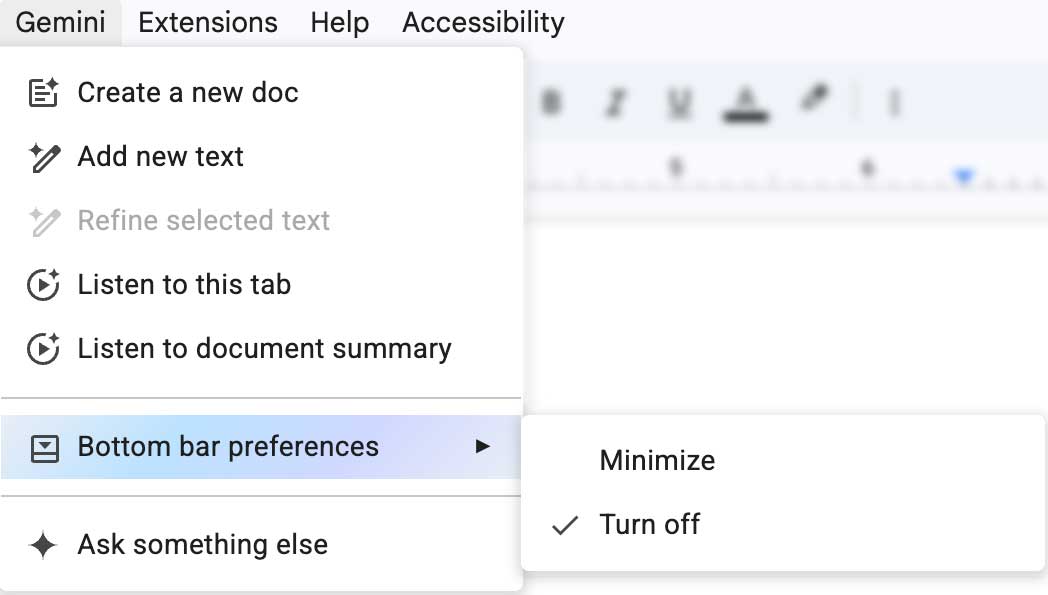
- Select Bottom bar preferences.
- Click Turn off.
Change Gemini Smart Features in Google Sheets
Note: If you disable smart features in a Google Sheet, it will disable them for all of your Google Sheets.
- Open Google Sheets in your web browser.
- Open a Google Sheet you already have, or start a new Google Sheet.
- Click Gemini in the top menu bar.
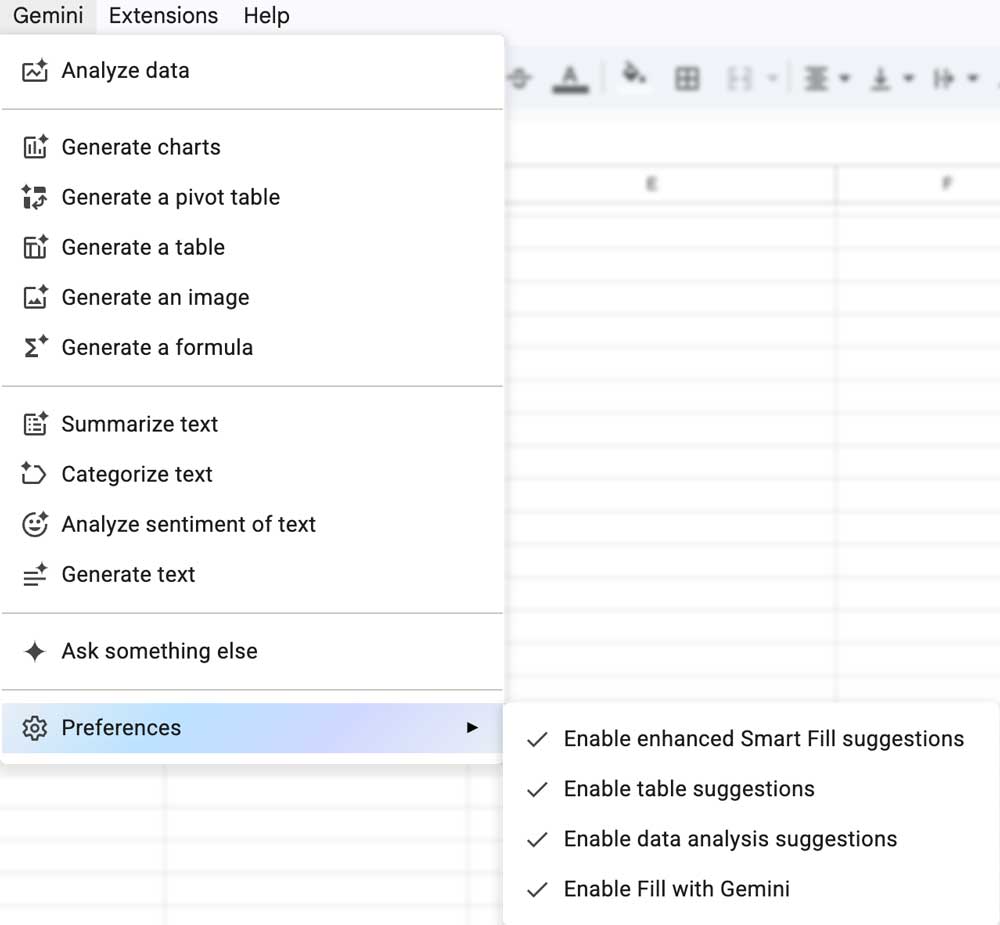
- Select Preferences.
- Here you can uncheck the following settings to disable them:
- Enable Enhanced Smart Fill Suggestions
- Enable Table Suggestions
- Enable Data Analysis Suggestions
- Enable Fill with Gemini