Understanding the Faculty Experience
Getting Started
LockDown Browser locks down the Moodle testing environment. During a quiz, it prevents students from printing, copying, visiting other websites, opening other apps, or leaving the quiz before submitting it for grading.
Standard browsers cannot open LockDown Browser quizzes. LockDown Browser functions like a regular browser, but disables or restricts certain features to secure the test.
Key Features
- Modified Toolbar – the condensed toolbar includes only Forward, Back, Refresh, and Stop functions.
- Assessment Mode – assessments are shown fullscreen and cannot be minimized, resized, or exited until submitted for grading.
- Disabled Controls – all printing, keystroke combinations, screen grab, function keys, and right-click menus are disabled.
- Links – links that are a part of the Moodle quiz will work in the LockDown Browser.
- Blocked Features and Applications – the Start button (Windows), system tray, and menu bars have been removed. Hundreds of screen capture, messaging, screen-sharing and network monitoring applications are blocked.
Adding Respondus to your Course
To add Respondus to your course:
- Navigate to your course in Moodle, and remain on the front page of your course (do not navigate to any activities).
- Toggle on Edit Mode in the upper-right.
- Open the Block Drawer on the right side of your Moodle course (click the < in the upper-right, directly underneath the Edit Mode toggle).
- Click [Add Block]. The block will be added to the Block Drawer on the front page of the course.
- Once added, you can manage your Respondus Dashboard.
Managing Respondus in your Course
Once you have added the Respondus Block:
- Navigate to the front page of your course
- With the block drawer open, you will see the Respondus LockDown Browser block.
- Click the link for the Dashboard. This will open the LockDown Browser and offer several resources and options for using the LockDown Browser in your course.
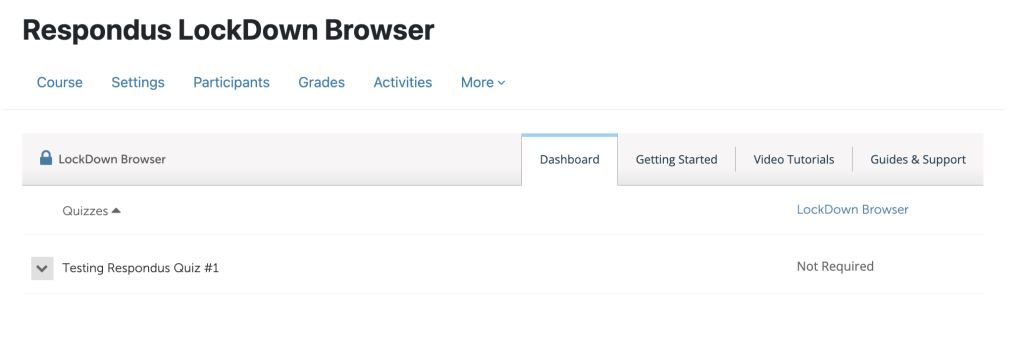
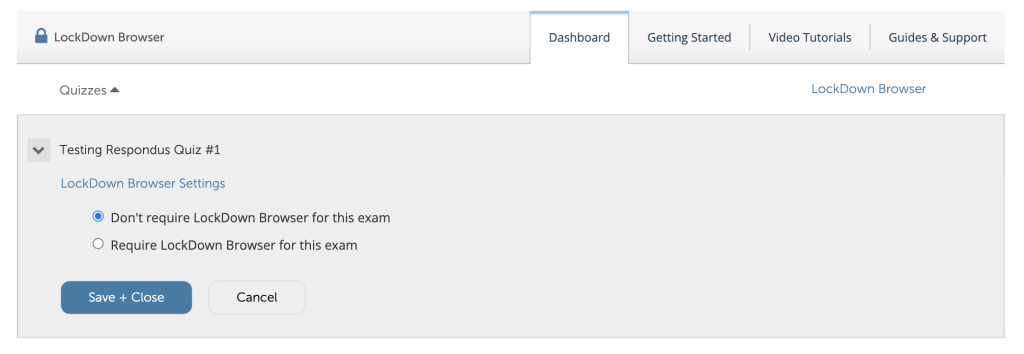
If you have already created a Moodle Quiz in the course, it will appear in the main Dashboard. You can click the v (down caret symbol) next to the Quiz title to manage the LockDown Browser settings for the specific quiz.
Best Practice: Start with a Practice Quiz
When introducing Respondus LockDown Browser to a course, an important first step you can take to ensure student success is to start with a low-stakes or zero-point practice quiz.
Since LockDown Browser is a separate application that students must install on their personal devices, technical and compatibility issues can occur. A practice quiz allows students to troubleshoot these issues before an exam.
Recommendations for your practice quiz:
-
Make it available early: Open the practice quiz at least one week before the first real exam.
-
Keep it low-stakes: Assign zero points or a nominal participation grade. The goal is for the student to successfully install and use LockDown Browser.
-
Allow unlimited attempts: Give students the opportunity to take the quiz multiple times. This is so they can become more comfortable taking a Moodle quiz in LockDown Browser and for them to be sure it works on their device.
-
Make the content easy: Ask a couple of questions about the course syllabus or a simple “True/False: I was able to successfully open this quiz in LockDown Browser”.
Requiring students to complete a practice test can reduce their pre-quiz anxiety and mitigate technical issues.